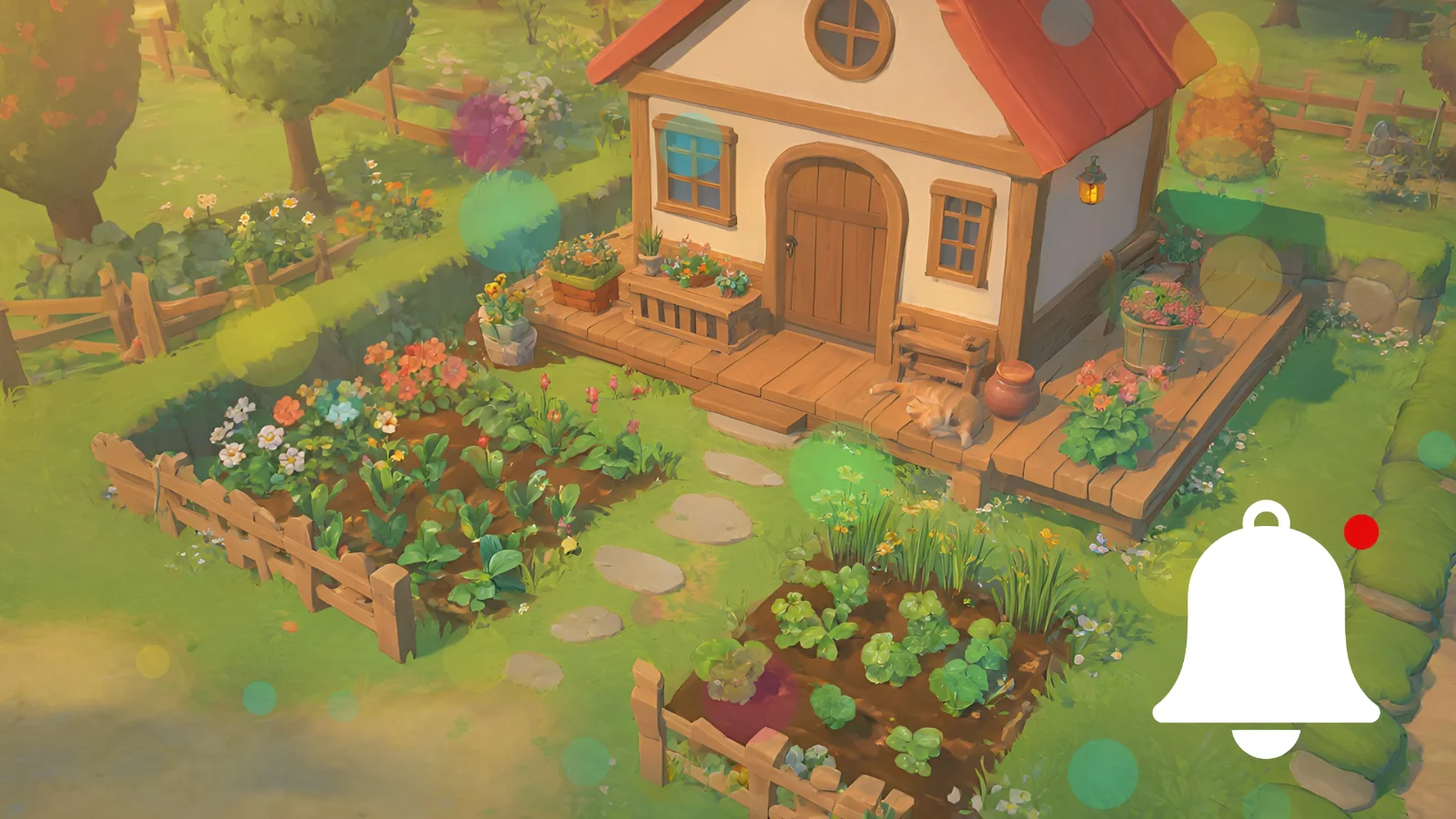
Filmora makes it easy to put an overlay effect or a "hit the bell" button on your gaming video, and it takes a few minutes. HUD Drop's PNGs are transparent, so your gameplay shows through wherever the art is empty. The steps and screenshots are from Wondershare Filmora 16 on Windows.
Before you start
- Wondershare Filmora, for Windows or Mac. The free version does everything here, but it adds a Filmora watermark to exported videos, and you need a free Wondershare ID to export.
- Your gameplay clip, 16:9 for YouTube or 9:16 for Shorts and TikTok. Pick the ratio next to New Project on Filmora's start screen.
- The PNGs from HUD Drop's free Overlays, Subscribe Buttons and HUD Frames.
1. Import the PNGs
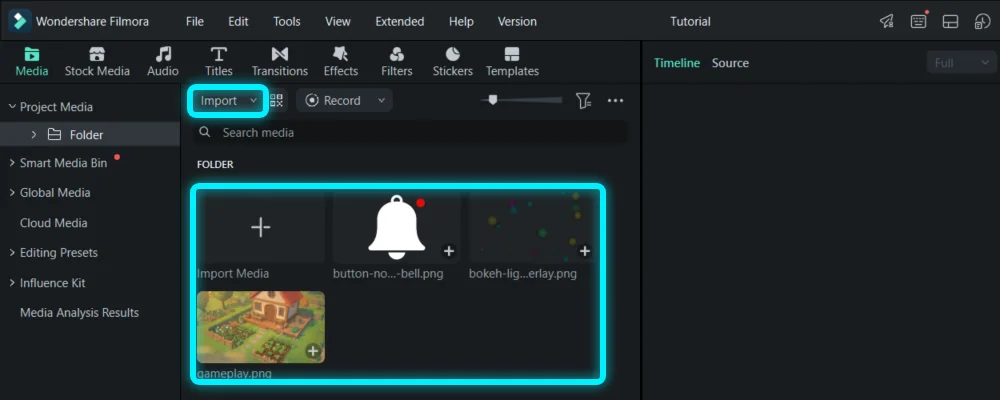
In the Media tab at the top left, click Import and pick your gameplay and the PNGs. They appear in the project's media folder.
2. Put the overlay above your gameplay
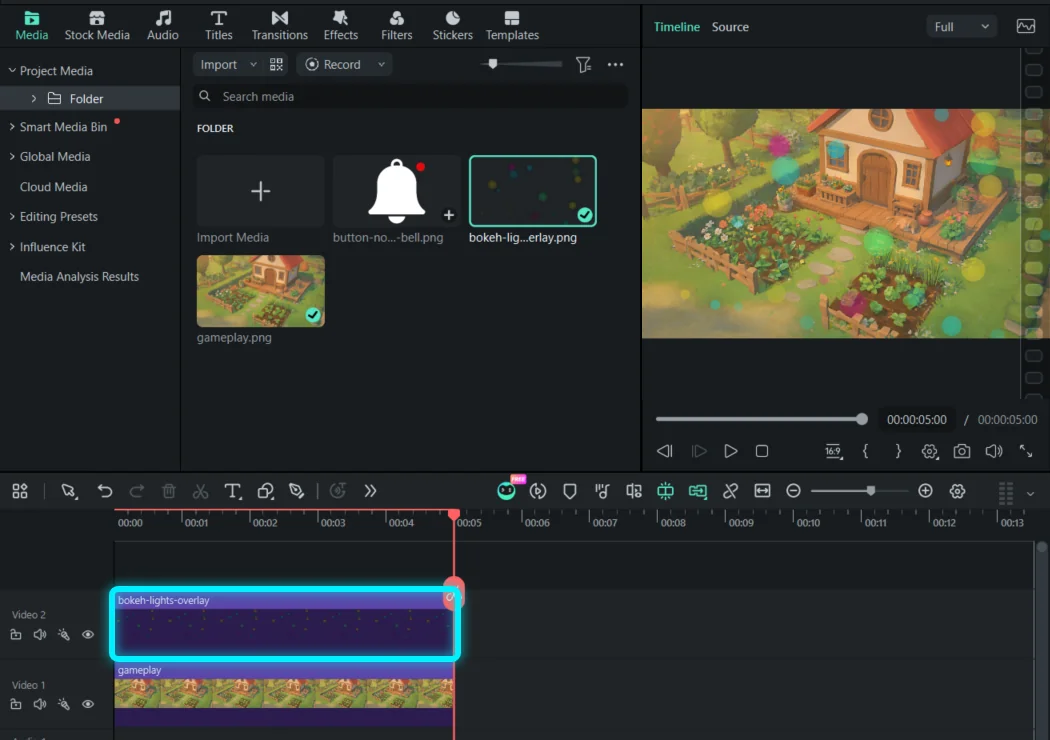
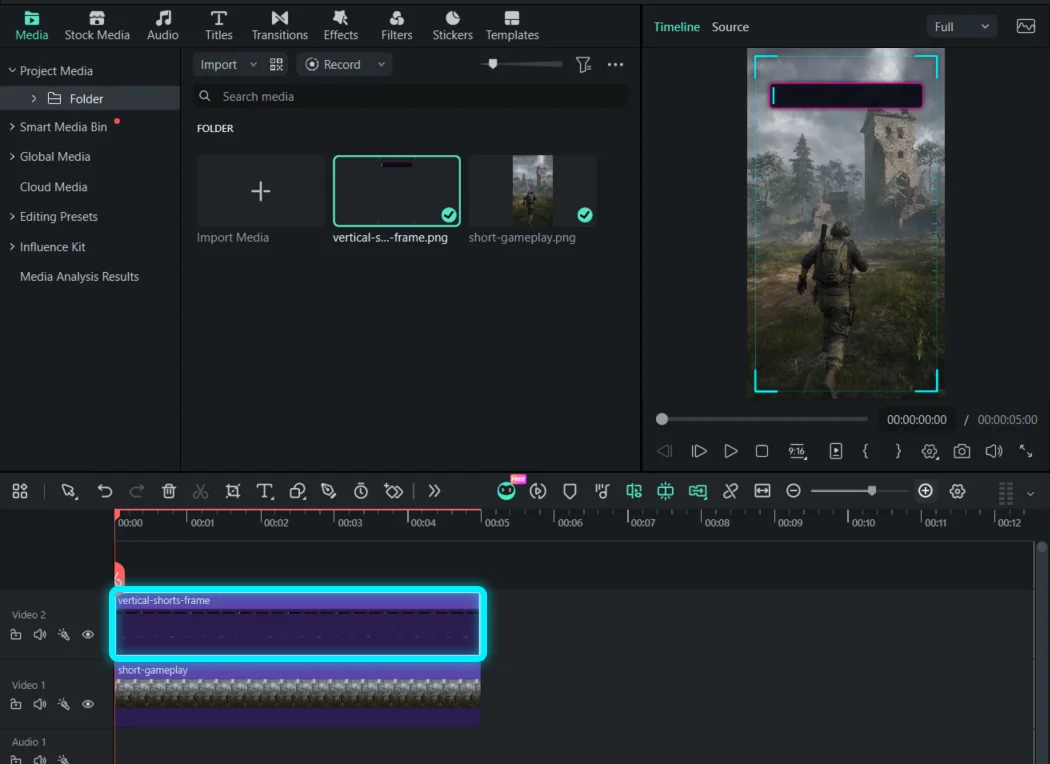
Drag your gameplay onto the timeline, then drag the overlay onto the timeline above it, so it sits on Video 2 over the gameplay on Video 1. Higher tracks sit on top, so the effect plays over your gameplay.
3. Make it as long as your clip
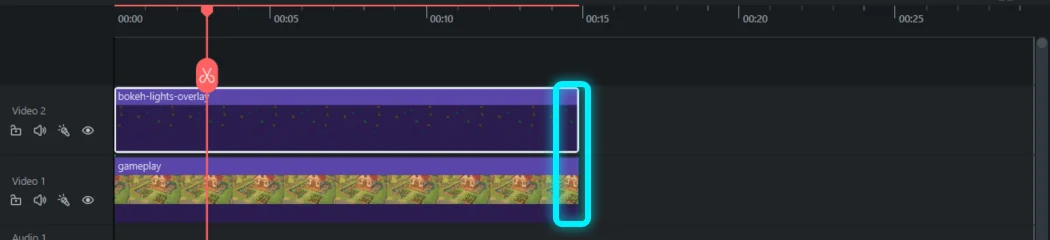
A PNG lands on the timeline as a 5-second clip. Drag its right edge until it lines up with the end of your gameplay.
4. Soften the effect
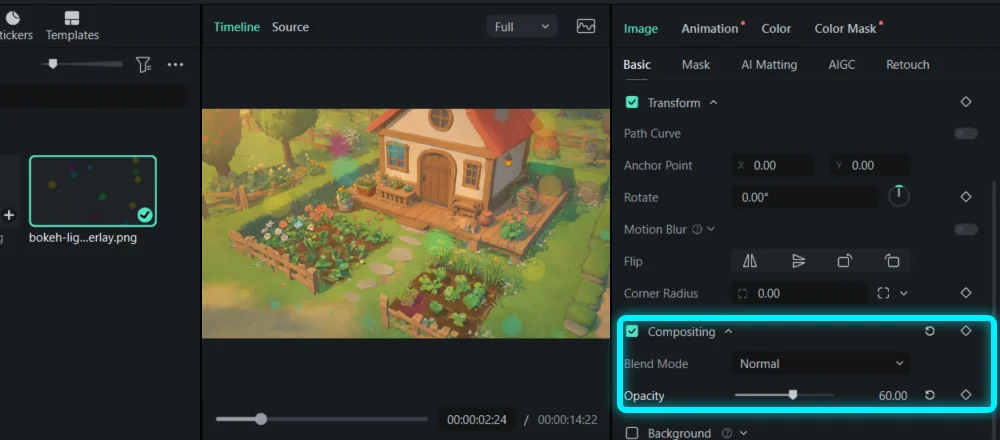
Effects like bokeh, rain or VHS can be strong at full strength. Click the overlay clip, and in the panel on the right open Image › Basic. Under Compositing, lower Opacity to around 50–70.
5. Add a subscribe or bell button
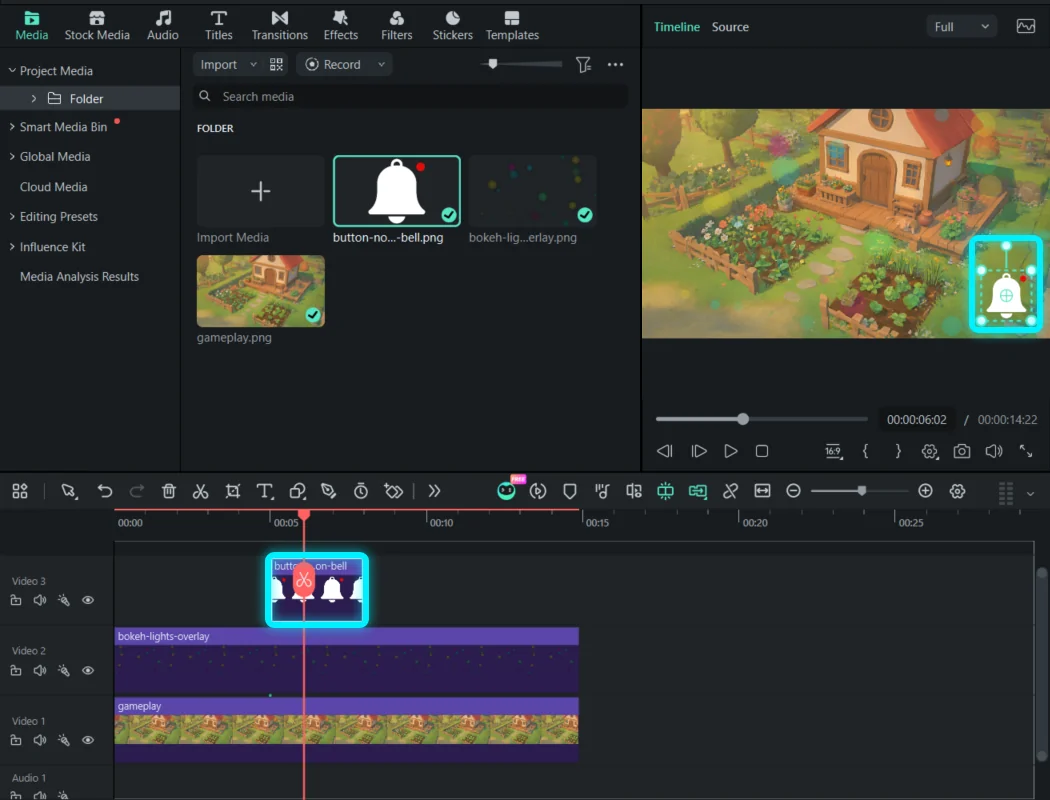
Drag the button onto a track above the others, at the moment you want it to appear. In the preview, drag a corner to make it smaller (or lower Scale under Transform), and drag it into a corner of the picture. Then drag the clip's right edge to shorten it to about 3 seconds.
6. Make the button pop in
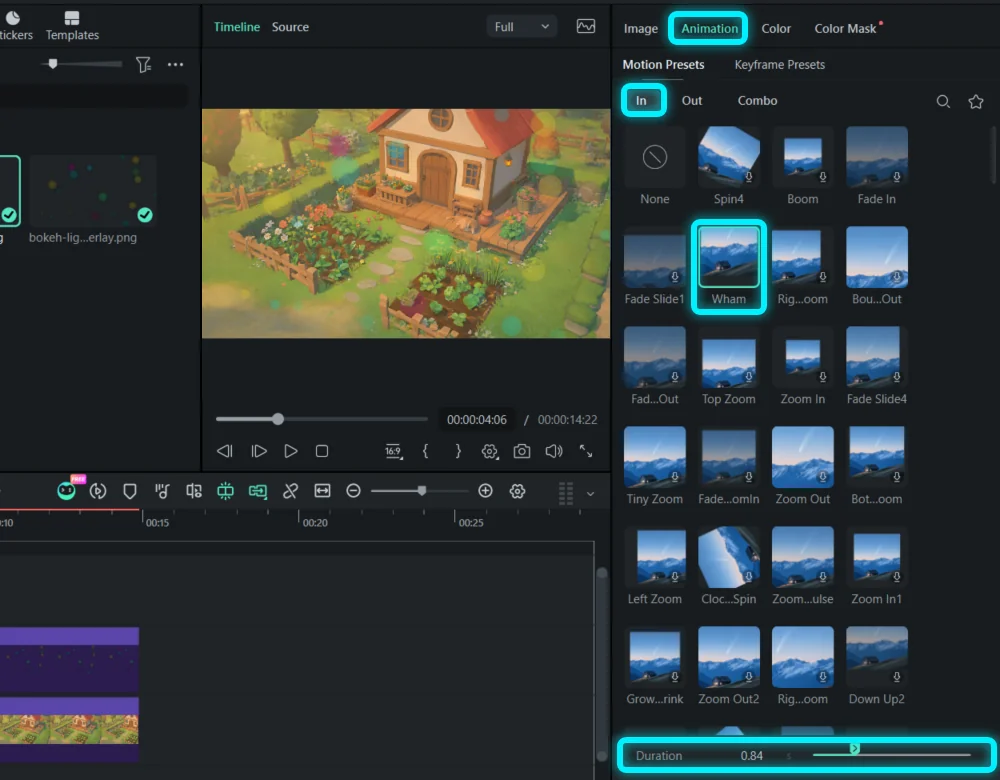
With the button clip selected, open the Animation tab on the right, then Motion Presets › In, and click a preset, like Wham or Fade In. The Duration slider at the bottom sets how fast it plays. The Out tab does the same for when the button leaves.
7. Export
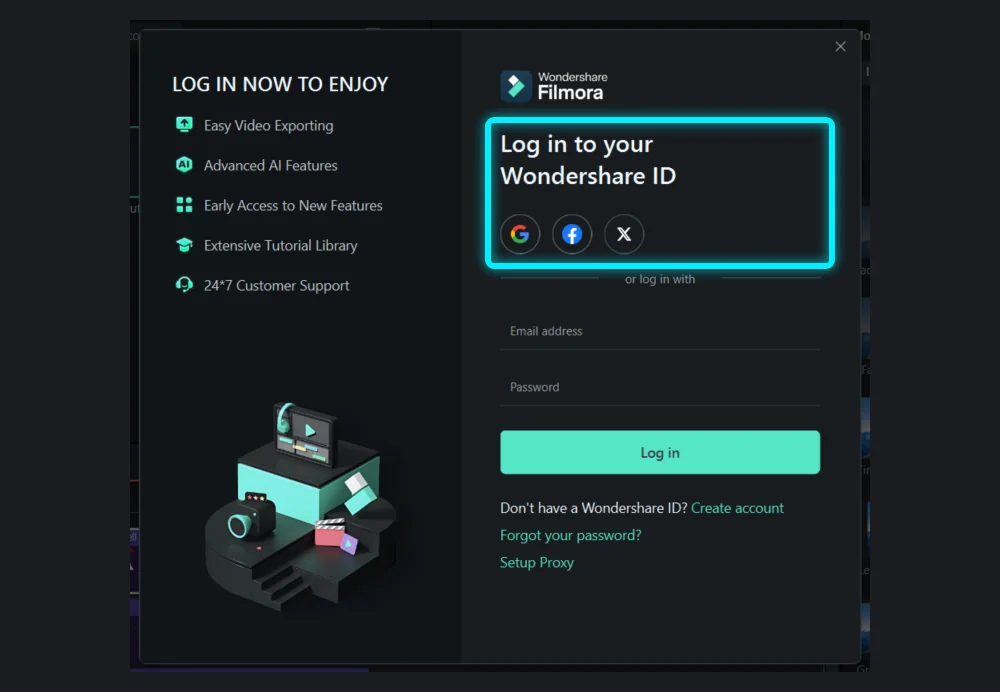
Click Export at the top right. Filmora asks you to log in to a free Wondershare ID first; after that, the export window lets you pick the format and resolution. On the free version, the exported video carries a Filmora watermark.
8. Vertical Shorts and TikTok
For a Short, choose File › New Project › 9:16 (Portrait), or pick 9:16 next to New Project on the start screen. HUD Drop's Vertical Shorts Frame is 1080×1920, so it fits a 9:16 project exactly: put it on the track above your gameplay.
Common questions
Is Filmora free?
You can edit everything in this guide for free, but free exports carry a Filmora watermark and need a Wondershare ID. For no watermark at no cost, see the CapCut and DaVinci Resolve guides.
Can I use HUD Drop overlays and buttons in monetized videos?
Yes. They're free for monetized videos, streams and thumbnails, with no credit needed. See the license.
Why does my overlay have a black or white box?
That image isn't transparent. HUD Drop's PNGs are, and Filmora keeps their transparency: use the PNG download button on the asset's page.
Does this work in older versions of Filmora?
The idea is the same in any version: the PNG goes on a track above your gameplay. Menu names may differ slightly from Filmora 16's.