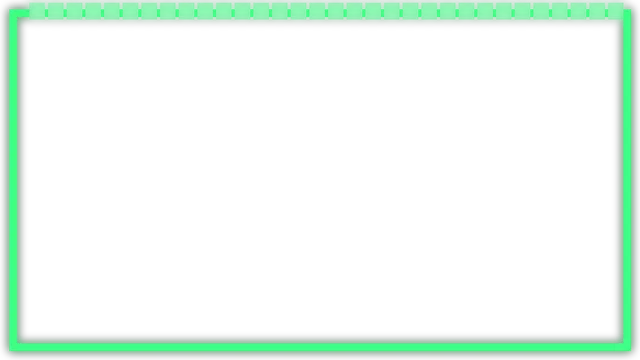
CapCut is free, and adding an overlay effect or a subscribe button to your gaming video takes a few minutes. HUD Drop's PNGs are transparent, so your gameplay shows through wherever the art is empty. Everything here uses CapCut's free features on the desktop app.
Before you start
- CapCut for desktop, free for Windows and Mac. A few effects carry a purple diamond; that marks the paid Pro plan, and this guide doesn't need any of them.
- Your gameplay clip, 16:9 for YouTube or 9:16 for Shorts and TikTok.
- The PNGs from HUD Drop's free Overlays, Subscribe Buttons and HUD Frames.
1. Import the PNGs
In the Media panel at the top left, click Import and pick your gameplay and the PNGs. Ctrl-click to pick several at once.
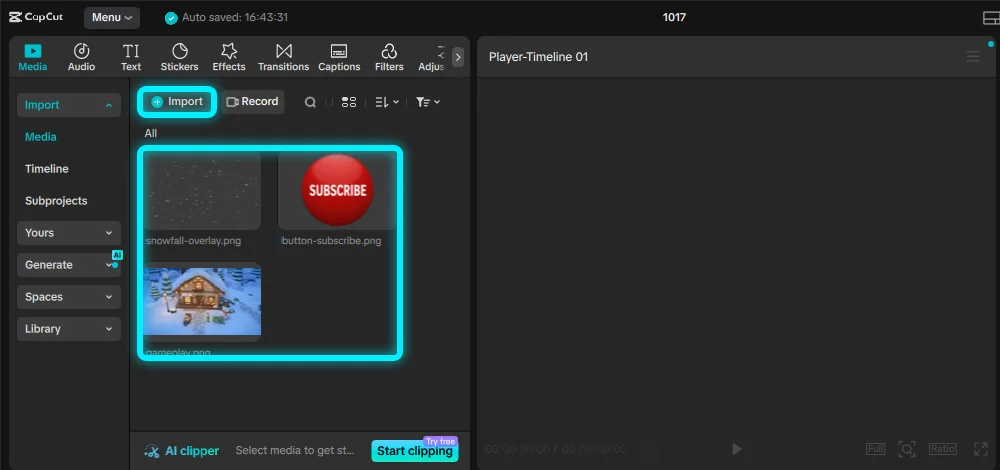
2. Put the overlay above your gameplay
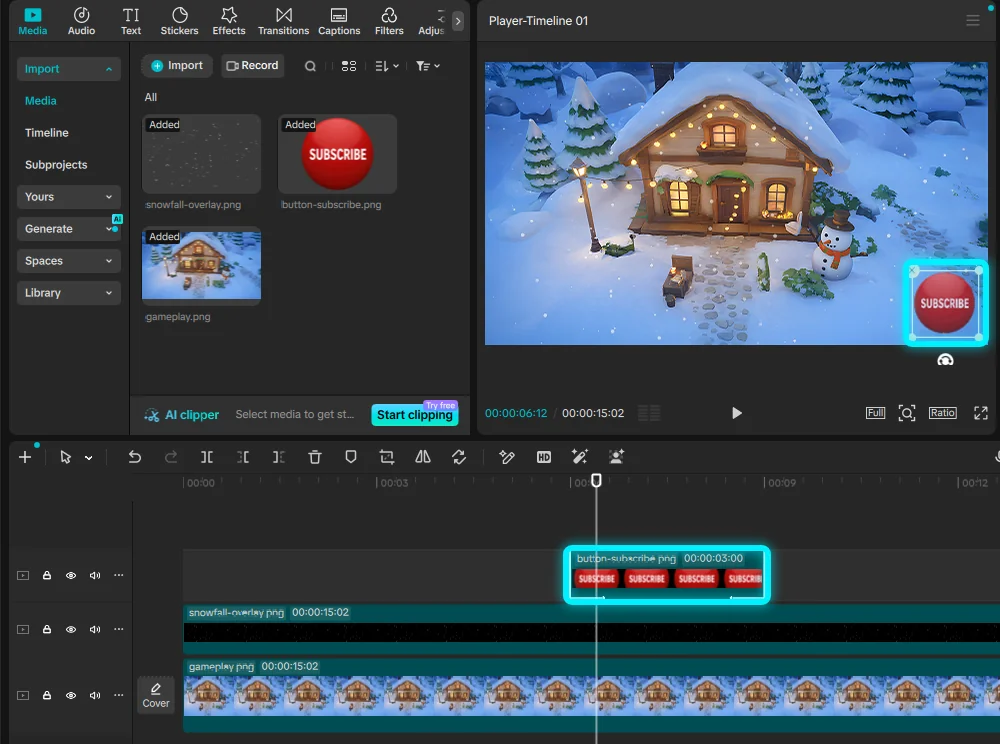
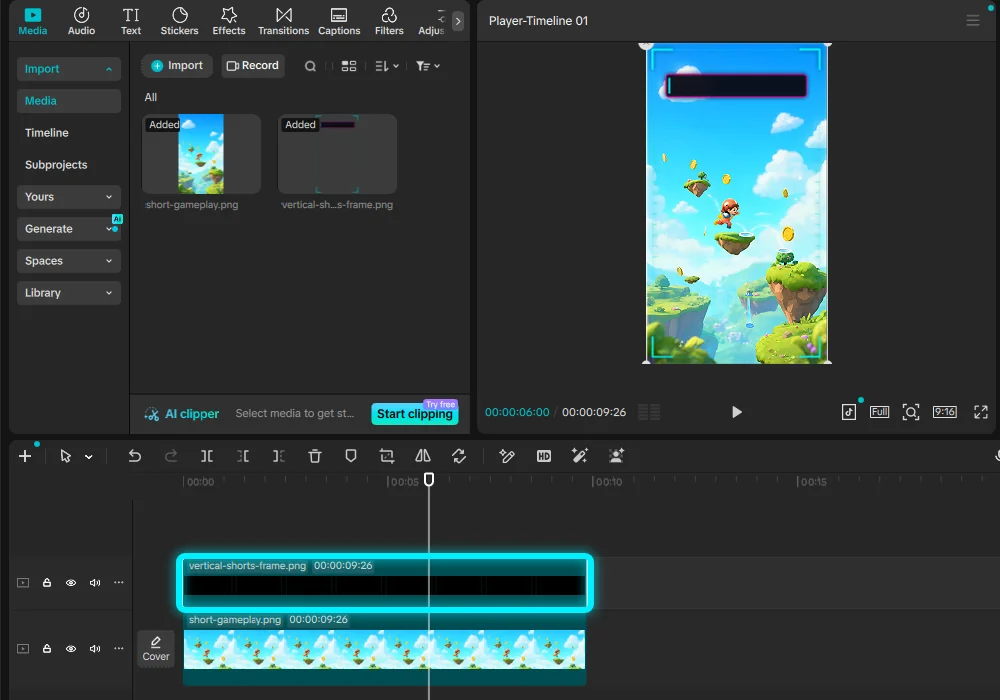
Drag your gameplay onto the timeline, then drag the overlay onto the timeline above it. CapCut gives it its own track, and higher tracks sit on top, so the effect plays over your gameplay.
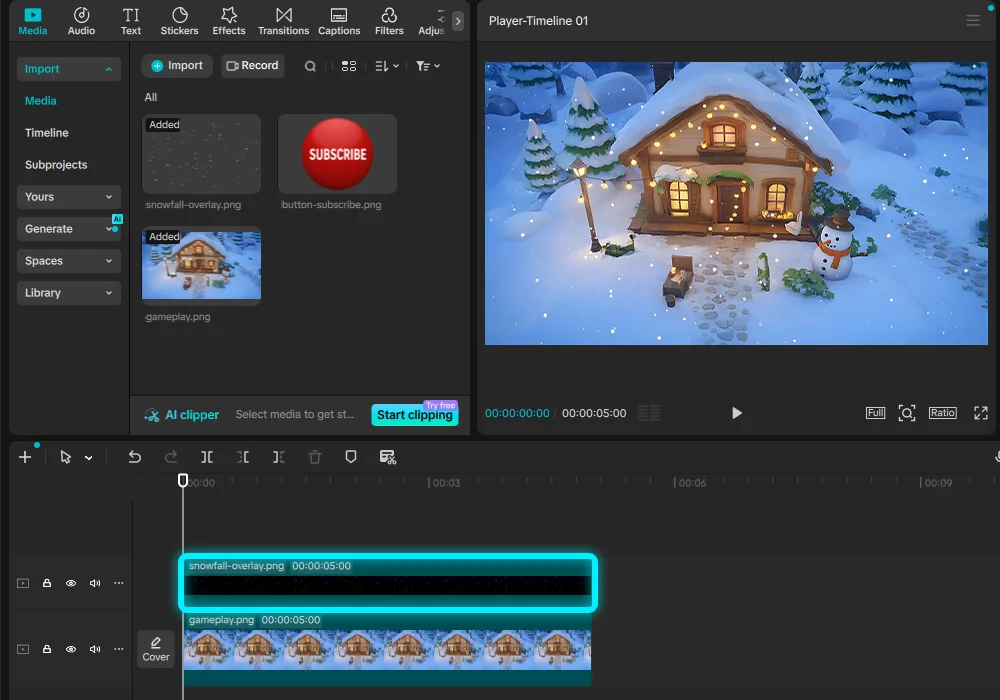
3. Make it as long as your clip
A PNG lands on the timeline as a 5-second clip. Hover over its right edge until the cursor changes, then drag it to the end of your gameplay.
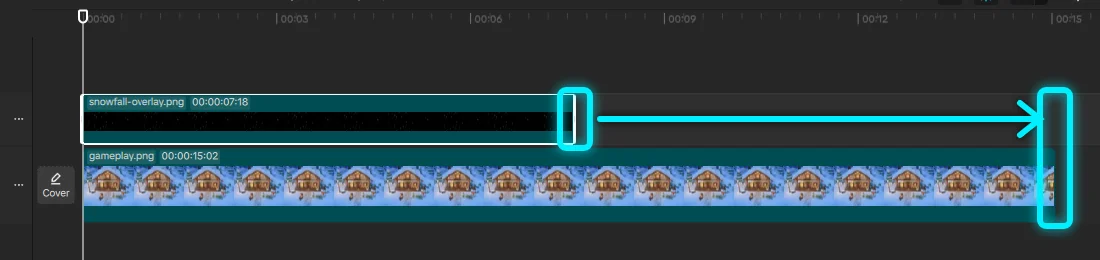
4. Soften the effect
Effects like snow, rain or VHS can be strong at full strength. Click the overlay clip, and in the panel on the right go to Video › Basic. Under Blend, lower Opacity to around 50–70%.
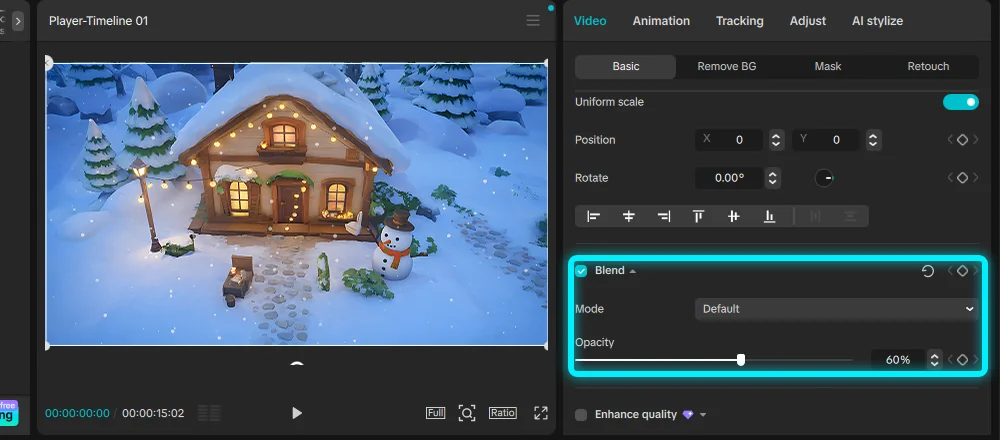
5. Add a subscribe button
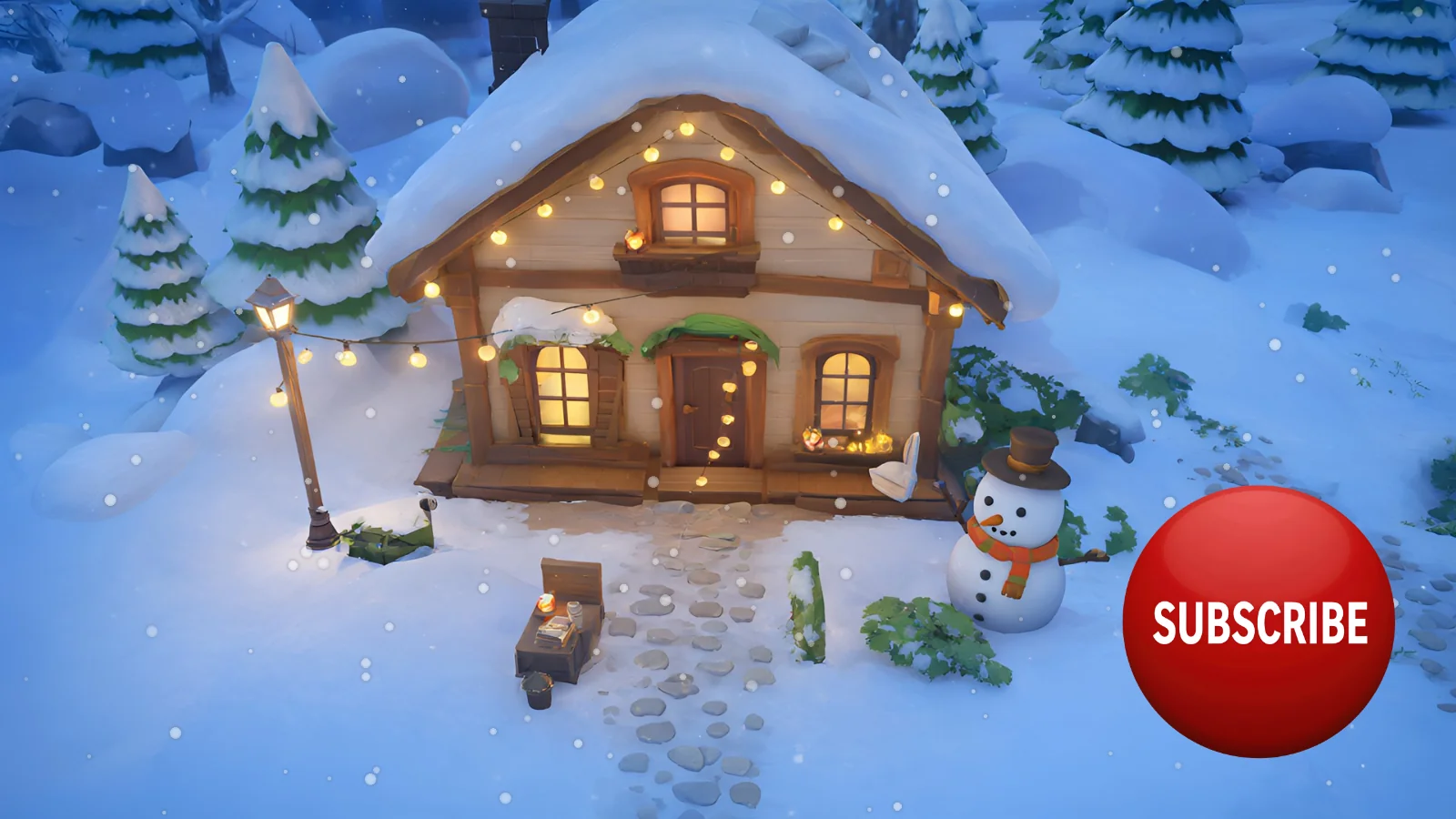
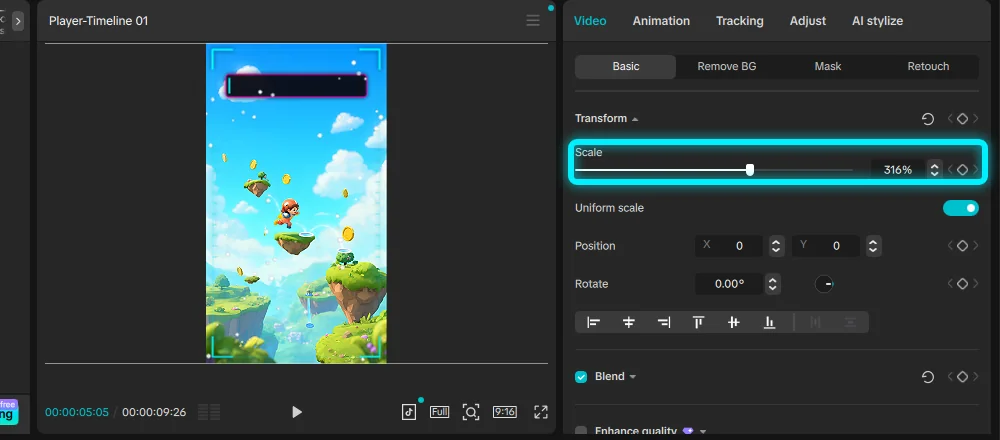
Drag the button onto a track above the others, at the moment you want it to appear. In the preview, drag a corner to make it smaller and drag it into a corner of the picture. Then drag the clip's right edge to shorten it to about 3 seconds, so it appears and goes.
6. Make the button pop in
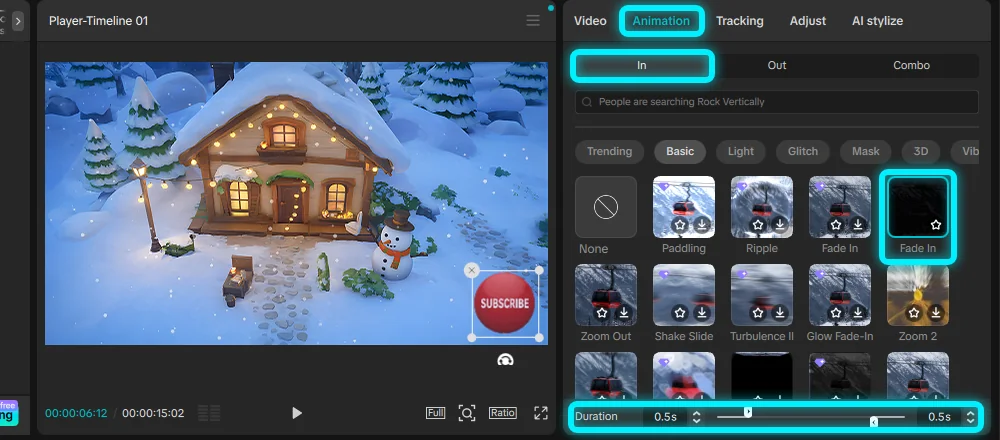
With the button clip selected, open the Animation tab on the right, choose In, and click an animation without a purple diamond, such as this Fade In. The Duration slider sets how fast it plays. Do the same under Out so the button leaves smoothly.
7. Export
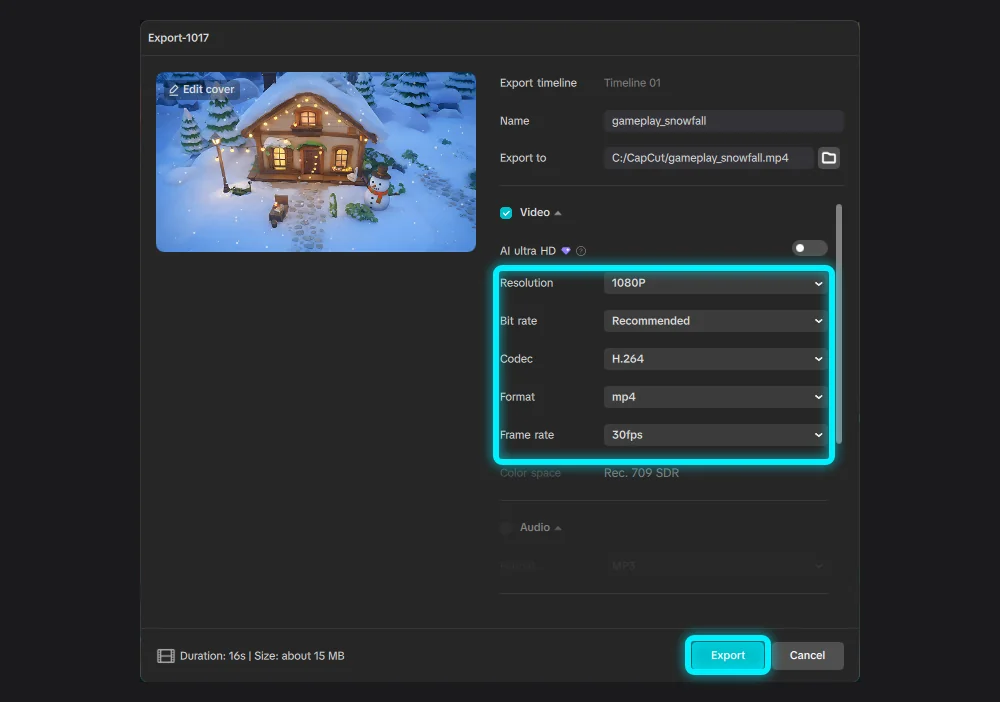
Click Export at the top right. The defaults, 1080P, H.264 and mp4, are right for YouTube. Click Export in the window to save the video.
8. Vertical Shorts and TikTok
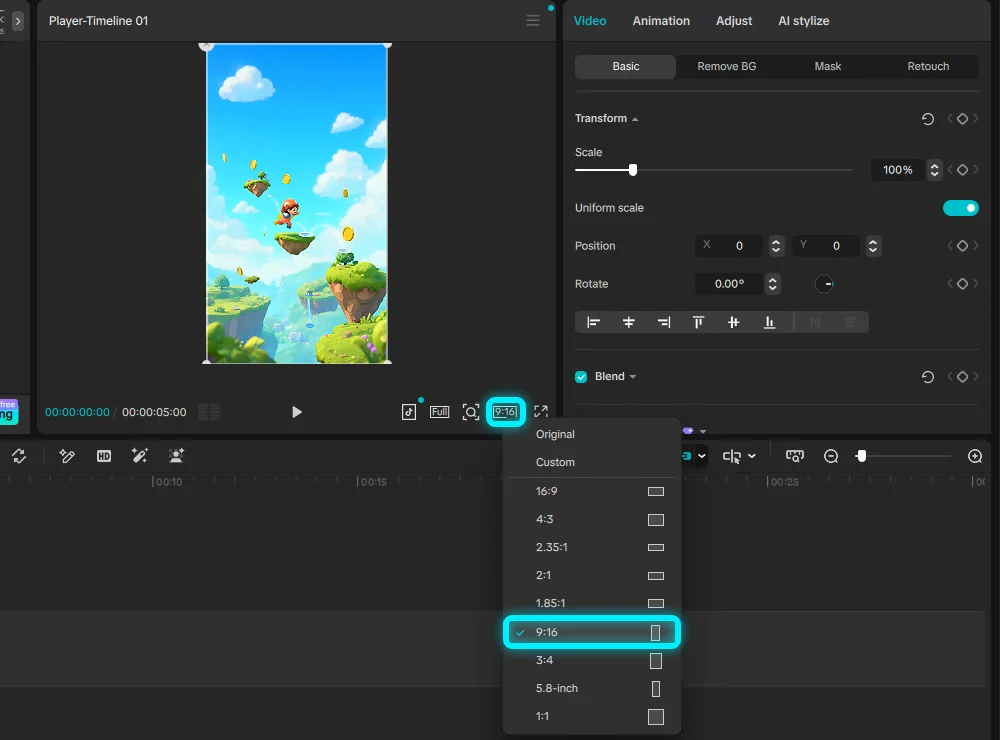
For a Short, click the ratio button under the preview and choose 9:16. HUD Drop's Vertical Shorts Frame is 1080×1920, so it fits a 9:16 project exactly: put it on the track above your gameplay, like any overlay.
Common questions
Is this all free in CapCut?
Yes. Importing, tracks, opacity, scaling and the animations without a purple diamond are free. The diamond marks CapCut Pro features, which you don't need here.
Does it work in the CapCut phone app?
The idea is the same: add the PNG as an overlay above your clip, then resize it, lower its opacity or animate it. The buttons are in different places, and this guide shows the desktop app.
Can I use HUD Drop overlays and buttons in monetized videos?
Yes. They're free for monetized videos, streams and thumbnails, with no credit needed. See the license.
Why does my overlay have a black or white box?
That image isn't transparent. HUD Drop's PNGs are, and CapCut keeps their transparency: use the PNG download button on the asset's page.